Code Blocks
Pagesmith uses a built-in Shiki-backed code renderer for code blocks. The renderer ships with @pagesmith/core, while the shared CSS and browser runtime live in @pagesmith/site. Include @pagesmith/site/css/content or @pagesmith/site/css/standalone so the shared frame, layout, and tab styles are present; theme colors and frame markup are generated during markdown processing, and the shared content runtime enables copy, collapse, and tab interactions in the browser.
Basic Syntax Highlighting
Use standard fenced code blocks with a language identifier:
```jsconst greeting = "Hello, world!";console.log(greeting);```Rendered sample:
const greeting = "Hello, world!";console.log(greeting);The built-in renderer supports 100+ languages through Shiki (the same syntax highlighting engine used by VS Code).
Dual Themes
Code blocks automatically support light and dark themes based on the user’s system preference (prefers-color-scheme). The default themes are github-light and github-dark.
Configure custom themes in your markdown config:
const config = defineConfig({ collections: { posts }, markdown: { shiki: { themes: { light: "github-light", dark: "github-dark", }, }, },});Or in pagesmith.config.json5 for @pagesmith/docs:
{ markdown: { shiki: { themes: { light: "catppuccin-latte", dark: "catppuccin-mocha", }, }, },}File Titles
Add a title to show a filename or label above the code block:
```ts title="vite.config.ts"import { defineConfig } from "vite";export default defineConfig({});```Rendered sample:
import { defineConfig } from "vite";export default defineConfig({});Line Numbers
Line numbers are shown by default. Hide them for a specific block:
```bash showLineNumbers=falsenpm install @pagesmith/core```Rendered sample:
npm install @pagesmith/coreOr start line numbers from a specific number:
```ts startLineNumber=42const answer = getAnswer();```Rendered sample:
const answer = getAnswer();To change the default for your entire site, set defaultShowLineNumbers in the markdown config:
const config = defineConfig({ collections: { posts }, markdown: { shiki: { defaultShowLineNumbers: false, }, },});Line Highlighting
Mark specific lines to draw attention:
```ts mark={3}const name = "Pagesmith";const version = "0.8.0";const highlighted = true; // this line is highlighted```Rendered sample:
const name = "Pagesmith";const version = "0.8.0";const highlighted = true; // this line is highlightedDiff-Style Highlighting
Show inserted and deleted lines:
```ts ins={2} del={1}const old = "before";const updated = "after";```Rendered sample:
const old = "before";const updated = "after";Range Syntax
Highlight multiple lines or ranges:
```ts mark={1, 3-5}const a = 1;const b = 2;const c = 3;const d = 4;const e = 5;```Rendered sample:
const a = 1;const b = 2;const c = 3;const d = 4;const e = 5;Collapsible Sections
Collapse long sections of code that are not the focus:
```ts collapse={1-5}// These lines are collapsed by defaultimport { defineConfig } from "vite";import { pagesmithContent, pagesmithSsg } from "@pagesmith/site/vite";import collections from "./content.config";// This line is visibleexport default defineConfig({ plugins: [pagesmithContent(collections), pagesmithSsg()],});```Rendered sample:
// These lines are collapsed by defaultimport { defineConfig } from "vite";import { pagesmithContent, pagesmithSsg } from "@pagesmith/site/vite";import collections from "./content.config";// This line is visibleexport default defineConfig({ plugins: [pagesmithContent(collections), pagesmithSsg()],});Users can click to expand the collapsed section.
Text Wrapping
Enable word wrapping for long lines:
```json wrap{ "name": "@pagesmith/core", "description": "Headless content layer — schema-validated collections, lazy markdown rendering, and the Vite content plugin", "version": "0.8.0"}```Rendered sample:
{ "name": "@pagesmith/core", "description": "Headless content layer — schema-validated collections, lazy markdown rendering, loaders, and the Vite content plugin", "version": "0.8.0"}Frame Styles
The built-in renderer automatically detects terminal languages (bash, sh, zsh, shell, powershell) and renders them with a terminal-style frame. All other languages use an editor-style frame.
Override the frame style explicitly:
```bash frame="none"npm install @pagesmith/core```Rendered sample:
npm install @pagesmith/coreAvailable frame values: "code" (editor), "terminal", "none" (plain, no chrome). When omitted, the frame is auto-detected from the language (bash/sh/shell/console/zsh use "terminal", everything else uses "code").
Copy Button
Every code block includes a copy button by default. Users can click it to copy the code to their clipboard. Copy, collapse, and tabs are progressively enhanced by the shared Pagesmith content runtime.
Code Tabs
Consecutive titled code blocks are automatically grouped into a tabbed interface. This is useful for showing the same concept across package managers, languages, or configurations. Just write titled fenced blocks one after another with no other content between them:
```bash title="npm"npm install @pagesmith/core``````bash title="pnpm"pnpm add @pagesmith/core``````bash title="yarn"yarn add @pagesmith/core```Rendered sample:
npm install @pagesmith/corepnpm add @pagesmith/coreyarn add @pagesmith/coreThe title value becomes the tab label. The first tab is active by default and readers can click to switch between them. Without JavaScript, all blocks stack vertically as a fallback.
You can also use code tabs to show the same logic in different languages:
```ts title="TypeScript"interface Config { host: string; port: number;}``````python title="Python"@dataclassclass Config: host: str = "localhost" port: int = 3000``````rust title="Rust"struct Config { host: String, port: u16,}```Rendered sample:
interface Config { host: string; port: number;}@dataclassclass Config: host: str = "localhost" port: int = 3000struct Config { host: String, port: u16,}Any non-code content (a paragraph, heading, or untitled code block) between titled blocks breaks the group — each group is independent.
How It Works
The diagram below shows the package split that matters most here: @pagesmith/core turns fenced code into themed HTML markup, while @pagesmith/site provides the shared CSS and browser runtime that make tabs, copy, and collapse interactions work.
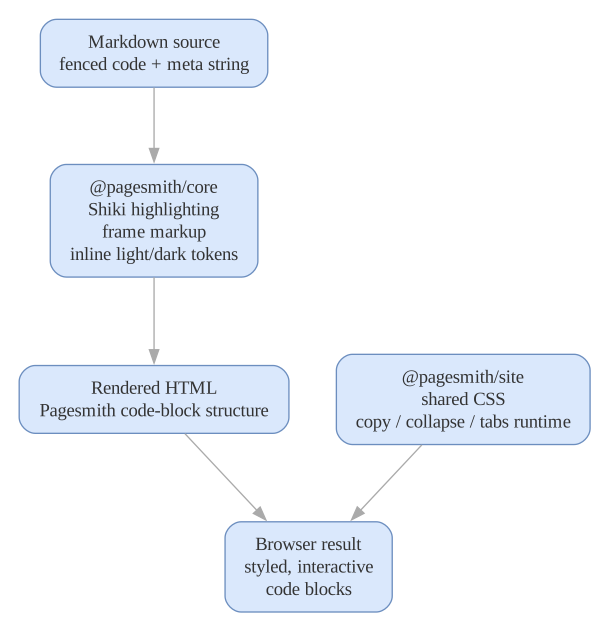
Pagesmith’s built-in code renderer runs inside the unified markdown pipeline. During markdown processing, it:
- Finds fenced code blocks in the HTML AST after
remark-rehype - Applies syntax highlighting using Shiki
- Builds Pagesmith-owned frame markup for titles, line numbers, tabs, copy buttons, diff markers, and collapse controls
- Adds inline theme variables for light/dark token colors
- Relies on the shared Pagesmith content runtime for tabs, copy, and collapse interactions
Shared code-block styling ships in the Pagesmith CSS bundles published from @pagesmith/site, and interactive behavior ships in the shared Pagesmith content runtime. Custom layouts and framework integrations should load those shared assets instead of recreating per-block JavaScript.
Meta String Reference
All meta properties are added after the language identifier in the opening fence:
| Property | Syntax | Description |
|---|---|---|
title |
title="filename.ts" |
Show a file name or label |
showLineNumbers |
showLineNumbers / showLineNumbers=false |
Show or hide line numbers |
startLineNumber |
startLineNumber=42 |
Start line numbers from a specific number |
mark |
mark={3} or mark={1,3-5} |
Highlight lines |
ins |
ins={2-3} |
Mark lines as inserted (green) |
del |
del={1} |
Mark lines as deleted (red) |
collapse |
collapse={1-5} |
Collapse a range of lines |
wrap |
wrap |
Enable word wrapping |
frame |
frame="terminal" |
Override the frame style |
Multiple properties can be combined:
```ts title="example.ts" mark={3} ins={5} collapse={1-2}import { z } from "zod";import { defineCollection } from "@pagesmith/core";const posts = defineCollection({ loader: "markdown", directory: "content/posts", schema: z.object({ title: z.string() }),});```Rendered sample:
import { z } from "zod";import { defineCollection } from "@pagesmith/core";const posts = defineCollection({ loader: "markdown", directory: "content/posts", schema: z.object({ title: z.string() }),});