Getting Started
Agent Quick Start
Use the package-owned setup prompt instead of a generic install request:
Set up
@pagesmith/corein this project. Readnode_modules/@pagesmith/core/skills/pagesmith-core-setup/references/setup-core.mdfirst and follow it exactly. Keep the work focused on collections, schemas,createContentLayer(), and eitherentry.render()orpagesmithContentfor Vite.
If the project also needs the shared Pagesmith site layer, tell the agent to read node_modules/@pagesmith/site/skills/pagesmith-site-setup/references/setup-site.md too. If you want the convention-based docs workflow instead, use Docs Getting Started.
To add AI memory files without scaffolding a docs site, run:
npx pagesmith-core ai --profile defaultManual Setup
Pagesmith works best when you treat content as typed data first and rendered HTML second. The core workflow is:
- Define collections with Zod schemas.
- Point them at filesystem directories.
- Load them through a content layer.
- Render only the entries you need.
If you want a convention-based docs site with built-in navigation and search, see the Docs Getting Started guide instead.
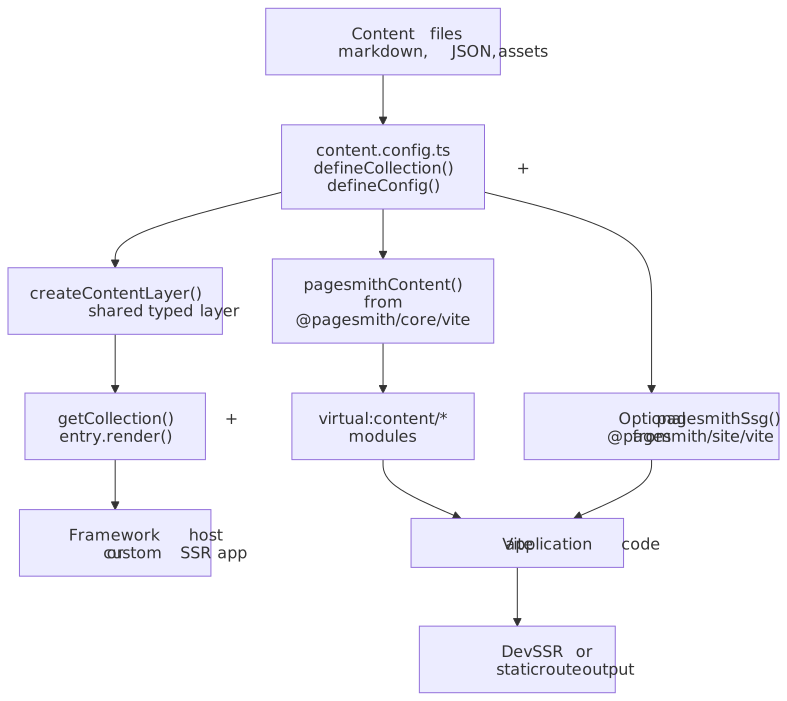
Use this diagram as the mental map: both integration styles start from the same typed content config, then branch into direct entry.render() usage or a Vite workflow with virtual content modules and optional SSG helpers.
Install
npm add @pagesmith/coreIf you want a custom site with the shared Pagesmith presentation layer, JSX runtime, or SSG helpers, use @pagesmith/site instead:
npm add @pagesmith/siteCreate a Content Config
A content config defines your collections, schemas, and markdown settings. Use defineCollection, defineConfig, and z (a re-export of Zod) from @pagesmith/core:
import { createContentLayer, defineCollection, defineConfig, z } from "@pagesmith/core";const posts = defineCollection({ loader: "markdown", directory: "content/posts", schema: z.object({ title: z.string(), description: z.string().optional(), date: z.coerce.date(), tags: z.array(z.string()).default([]), draft: z.boolean().default(false), }),});const authors = defineCollection({ loader: "json", directory: "content/authors", schema: z.object({ name: z.string(), bio: z.string().optional(), }),});const contentConfig = defineConfig({ collections: { posts, authors }, markdown: { shiki: { themes: { light: "github-light", dark: "github-dark" }, }, },});export default contentConfig.collections;export const layer = createContentLayer(contentConfig);defineCollection() is a type-safe identity function. It does not transform the definition, but it provides full TypeScript inference from the Zod schema so that entry.data is fully typed.
Recommended Content Layout
content/ posts/ hello-world/ README.md # Entry markdown hero.png # Sibling asset getting-started/ README.md authors/ jane-doe.jsonFolder-based entries (a directory with a README.md inside) are the safest default whenever a markdown entry references sibling assets like images. Pagesmith generates slugs from relative file paths, stripping README and file extensions:
| File Path | Generated Slug |
|---|---|
hello-world/README.md |
hello-world |
getting-started.md |
getting-started |
2024/my-post.md |
2024/my-post |
Load and Render
const posts = await layer.getCollection("posts");for (const post of posts) { console.log(post.slug, post.data.title); const rendered = await post.render(); console.log(rendered.html); // Processed HTML console.log(rendered.headings); // Heading[] for TOC console.log(rendered.readTime); // Minutes (200 wpm)}Rendering is lazy. When you call getCollection(), Pagesmith discovers files, loads them through the registered loader, validates data against the Zod schema, and runs content validators. The raw markdown is available immediately as entry.rawContent, but HTML rendering only happens when you call entry.render(). Results are cached after the first call.
Using Core Without Vite
If your app already owns routing and build tooling, you can stop at createContentLayer() plus entry.render(). This is the recommended shape for framework hosts such as Next.js or custom SSR apps that do not want Pagesmith’s Vite plugins.
If you want the shipped markdown presentation layer or other site-building helpers, move up to @pagesmith/site:
@pagesmith/site/css/contentfor prose and code-block chrome@pagesmith/site/runtime/contentfor copy buttons, code tabs, and collapse toggles
See Next.js (App Router) for a complete example of this pattern.
Using the Vite Plugin
For Vite-based projects, split Pagesmith by layer when you are intentionally staying on the lower-level core package:
pagesmithContentfrom@pagesmith/core/viteexposes collections as virtual modules with full type safety.pagesmithSsgfrom@pagesmith/site/vitehandles dev-time SSR middleware and build-time static site generation.
import { defineConfig } from "vite";import { pagesmithContent } from "@pagesmith/core/vite";import { pagesmithSsg } from "@pagesmith/site/vite";import collections from "./content.config";export default defineConfig({ plugins: [pagesmithContent(collections), pagesmithSsg({ entry: "./src/entry-server.tsx" })],});If the project adopts @pagesmith/site as the app-facing package, you can instead keep the Vite imports on @pagesmith/site/vite.
Then import collection data in your application code:
import posts from "virtual:content/posts";// Markdown collections: { id, contentSlug, html, headings, frontmatter }for (const post of posts) { console.log(post.frontmatter.title, post.html);}The pagesmithContent plugin generates TypeScript declarations (pagesmith-content.d.ts) so that virtual:content/posts has full type safety derived from the Zod schema in your content.config.ts.
The SSR entry module must export two functions:
export function getRoutes(config: SsgRenderConfig): string[] { // Return all route paths to pre-render return ["/", "/posts/hello-world", "/404"];}export function render(url: string, config: SsgRenderConfig): string { // Return the full HTML string for a given route return "<html>...</html>";}Documentation Sites
Looking to build a documentation site? See the Docs Getting Started guide for a complete walkthrough of
@pagesmith/docs, including config, content structure, navigation, search, and deployment.
AI Files To Read
When you are working with an installed project, these are the first files to hand to an agent:
node_modules/@pagesmith/core/skills/pagesmith-core-setup/references/setup-core.mdnode_modules/@pagesmith/core/skills/pagesmith-core-setup/references/usage.mdnode_modules/@pagesmith/core/REFERENCE.mdnode_modules/@pagesmith/site/skills/pagesmith-site-setup/references/setup-site.mdwhen the project also uses@pagesmith/site.pagesmith/markdown-guidelines.mdafter AI artifacts are installed
Import Map
| I want to… | Import from |
|---|---|
| Define collections and schemas | @pagesmith/core |
| Use the content Vite plugin in a core-only integration | @pagesmith/core/vite |
| Use the app-facing Vite plugin and SSG helpers | @pagesmith/site/vite |
| Write site JSX layouts | @pagesmith/site/jsx-runtime |
| Write docs layout overrides | @pagesmith/docs/jsx-runtime |
| Add content CSS | @pagesmith/site/css/content |
| Add full layout CSS | @pagesmith/site/css/standalone |
| Process markdown directly | @pagesmith/core/markdown |
| Use Zod schemas | @pagesmith/core/schemas |
| Use built-in loaders | @pagesmith/core/loaders |
| Access runtime CSS/JS paths | @pagesmith/site/runtime |
What to Read Next
- Collections and Loaders — defining collections, built-in loaders, custom loaders, schemas
- Validation and Rendering — schema validation, content validators, the markdown pipeline
- Next.js (App Router) — direct
createContentLayer()+entry.render()inside a framework app - API Reference — full API surface of
@pagesmith/core,@pagesmith/site, and@pagesmith/docs - Configuration Reference — all configuration options
- AI Assistants — installing assistant memory and skill files