Meta Files and Navigation
@pagesmith/docs uses meta.json5 files to control navigation, sidebar ordering, series grouping, and section-level layout assignments. In the default convention, top-level folders define the major docs sections, nested markdown files stay in that top-level section, and the reader-facing sidebar stays flat. There are two types of meta files: a root meta file for site-wide navigation, and section meta files for per-section configuration.
Navigation at a Glance
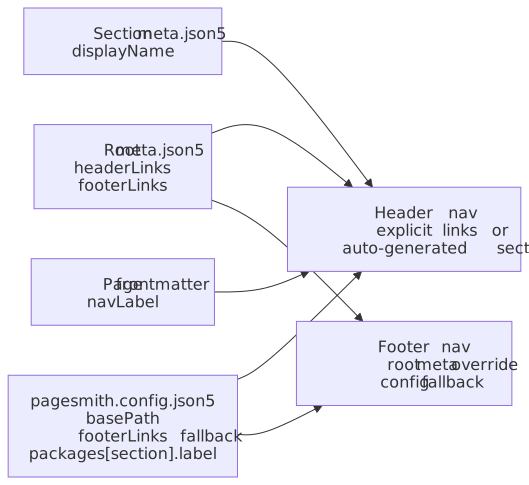
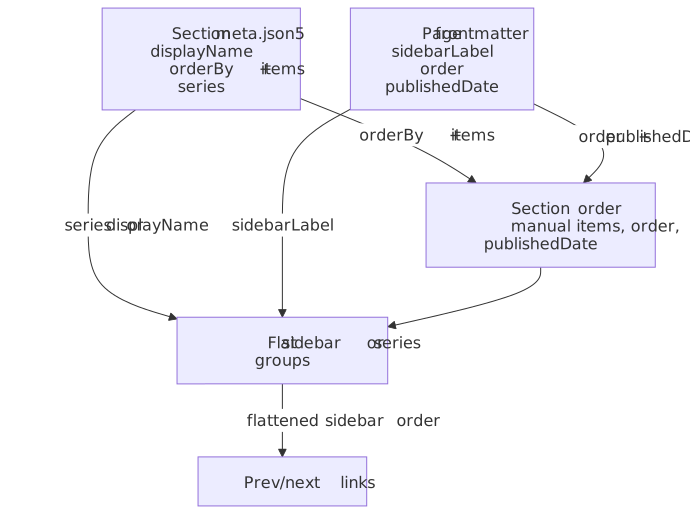
This diagram shows which file controls each navigation surface. Notice that root meta.json5 owns site-wide header and footer links, while section meta plus page frontmatter determine sidebar grouping, ordering, and the flattened sequence that powers prev and next.
First, root meta and config feed the site-wide header and footer, with section meta and page frontmatter contributing labels:
Second, section meta and page frontmatter determine sidebar grouping, ordering, and the flattened sequence that powers prev and next:
Root meta.json5
Place a meta.json5 file directly inside the content directory to control the site header and footer navigation.
Location: content/meta.json5
{ // Explicit header navigation links (overrides auto-generated section nav) headerLinks: [ { label: "Guide", path: "/guide" }, { label: "Reference", path: "/reference" }, ], // Footer navigation links footerLinks: [ { header: "Docs", links: [ { label: "Guide", path: "/guide" }, { label: "Reference", path: "/reference" }, ], }, { header: "Project", links: [{ label: "GitHub", path: "https://github.com/example/repo" }], }, ],}Header Links
By default, @pagesmith/docs auto-generates header navigation from the top-level content folders. Each folder becomes a nav item, with the label derived from (in priority order):
- The section
meta.json5displayName - The section landing page
navLabelfrontmatter - The section landing page
title - The folder name converted to title case
When headerLinks is provided in the root meta file, auto-generation is disabled and only the explicit links are shown. This gives you full control over which sections appear in the header and in what order.
Each link has:
label— the text shown in the navigationpath— an internal path (starting with/) or an external URL
Internal paths are automatically prefixed with basePath at build time.
Footer Links
Footer links defined in the root meta file take precedence over footerLinks in pagesmith.config.json5. This lets you keep navigation configuration in one place alongside your content. Internal paths are also prefixed with basePath.
Use a flat array of { label, path } objects for a simple wrapped link row, or use grouped objects with { header?, links } for column-based footer navigation. When neither root meta nor config defines footerLinks, Pagesmith falls back to the major top-level navigation links so the footer still exposes the primary destinations in the docs. Set footerLinks: [] in config or root meta to hide the footer links entirely.
Section meta.json5
Each top-level content folder can contain its own meta.json5 to configure that section’s behavior.
Location: content/<section>/meta.json5
{ displayName: "Guide", description: "Learn how to use the framework.", orderBy: "manual", items: ["getting-started", "configuration", "deployment"],}Section Meta Fields
| Field | Type | Description |
|---|---|---|
displayName |
string |
Section label used in the header nav and sidebar title |
description |
string |
Section description (available to layout components) |
layout |
string |
Layout name for the section landing page (the section’s README.md). Defaults to "page" |
itemLayout |
string |
Layout name for all non-landing pages in the section. Defaults to "page" |
orderBy |
"manual" or "publishedDate" |
How pages in this section are sorted |
items |
string[] |
Explicit ordering of page slugs when orderBy is "manual" |
series |
array |
Group pages into named series for sidebar display |
How Ordering Works
Page ordering determines the sidebar order and the prev/next navigation links at the bottom of each page.
Default Ordering
When no orderBy is specified, Pagesmith keeps section pages in flat slug order. If you add an explicit order frontmatter value, those pages still sort before unordered pages:
---title: First Pageorder: 1------title: Second Pageorder: 2---Pages without an order field appear after all explicitly ordered pages, sorted by route path.
Manual Ordering with items
Set orderBy: "manual" and provide an items array to control the exact order:
{ displayName: "Guide", orderBy: "manual", items: ["getting-started", "installation", "configuration", "deployment"],}Each entry in items is the slug of a page — the folder name that contains the README.md. Pages not listed in items appear after the listed ones, sorted by the default ordering rules.
Ordering by Published Date
For blog-like sections, use orderBy: "publishedDate" to sort by a publishedDate frontmatter field (newest first):
{ displayName: "Blog", orderBy: "publishedDate",}Pages use a publishedDate string in their frontmatter:
---title: My Latest PostpublishedDate: 2025-12-15---Pages without a publishedDate sort to the end.
Series Grouping
Series let you organize pages within a section into named groups that appear as separate sidebar sections. This is useful for multi-part tutorials, topic clusters, or any logical grouping within a section.
Defining Series
Use the series array in a section meta.json5:
{ displayName: "Guide", orderBy: "manual", series: [ { slug: "getting-started", displayName: "Getting Started", articles: ["getting-started", "installation", "first-project"], }, { slug: "advanced", displayName: "Advanced Topics", description: "Deep dives into advanced features.", articles: ["custom-loaders", "plugin-system", "performance"], }, ],}Series Fields
Each series entry has:
| Field | Type | Required | Description |
|---|---|---|---|
slug |
string |
yes | Unique identifier for the series |
displayName |
string |
yes | Title shown as the sidebar group heading |
shortName |
string |
no | Abbreviated name for compact displays |
description |
string |
no | Description of the series |
articles |
string[] |
yes | Ordered list of page slugs belonging to this series |
How Series Affect the Sidebar
When a section has series defined, the sidebar is built from the series groups instead of a single flat list. Each series becomes a group in the sidebar with the displayName as the heading.
The articles array controls the order of pages within each series. Pages can be matched by a section-relative slug such as advanced/setup, or by a unique leaf slug when there is no ambiguity.
Pages not listed in any series stay visible under an automatic Miscellaneous group instead of disappearing from the sidebar.
How the Sidebar Is Built
The sidebar is generated per-section and reflects the structure of content within that section.
Without Series
When no series are defined, the sidebar shows one flat list of pages for the section:
- The section landing page appears first when its slug sorts first or when explicit ordering puts it there.
- Remaining pages are sorted according to
orderByanditems(or the default slug order). - Nested folders keep their URL paths, but they do not create nested sidebar trees.
The sidebar title comes from the section displayName, falling back to the landing page title, then to the folder name in title case.
With Series
When series are defined, the sidebar shows grouped sections:
- Each series becomes a sidebar group with its
displayNameas the heading. - Within each group, pages appear in the order listed in
articles. - Pages not referenced by any series appear in a final
Miscellaneousgroup.
Sidebar Labels
By default, each sidebar item shows the page title. Use the sidebarLabel frontmatter field to show a different, typically shorter, label:
---title: Getting Started with @pagesmith/docssidebarLabel: Quick Start---How Navigation Items Are Derived
The header navigation bar shows one item per content section. The label and link for each item are determined as follows:
When root meta has headerLinks:
Only the explicitly listed links appear. Auto-generation is completely disabled.
When root meta has no headerLinks (or no root meta exists):
Navigation items are auto-generated from each top-level content folder. The label for each section is resolved in order:
displayNamefrom the sectionmeta.json5packages[sectionSlug].labelfrompagesmith.config.json5(for multi-package setups)navLabelfrom the section landing page frontmattertitlefrom the section landing pagenavLabelfrom the first page in the section- The folder name converted to title case
The link points to the section landing page if it exists, otherwise to the first page in the section.
Prev/Next Navigation
At the bottom of each non-home page, prev/next links are generated from the flattened sidebar order. The sidebar items (including nested children) are flattened into a single list, and the current page’s neighbors become the prev and next links.
This means the ordering in items, series, or the default sort directly determines the prev/next flow through the documentation.
Example Configurations
Simple ordered section
// content/guide/meta.json5{ displayName: "Guide", orderBy: "manual", items: ["getting-started", "configuration", "deployment"],}Blog-style section sorted by date
// content/blog/meta.json5{ displayName: "Blog", description: "News and updates.", orderBy: "publishedDate",}Multi-series section
// content/guide/meta.json5{ displayName: "Guide", orderBy: "manual", series: [ { slug: "basics", displayName: "Basics", articles: ["getting-started", "installation", "project-structure"], }, { slug: "features", displayName: "Features", articles: ["content-layer", "validation", "search"], }, { slug: "deployment", displayName: "Deployment", articles: ["building", "hosting", "ci-cd"], }, ],}Root meta with explicit navigation
// content/meta.json5{ headerLinks: [ { label: "Docs", path: "/guide" }, { label: "API", path: "/reference/api" }, { label: "Blog", path: "https://blog.example.com" }, ], footerLinks: [ { label: "Guide", path: "/guide" }, { label: "Reference", path: "/reference" }, { label: "GitHub", path: "https://github.com/example/repo" }, { label: "Discord", path: "https://discord.gg/example" }, ],}