MCP Server Setup
AI Quick Start
Ask your AI agent: “Configure the Pagesmith docs MCP server in my Claude Code settings with pagesmith-docs mcp --stdio. If this repo also owns a custom @pagesmith/core content layer, add a small wrapper around @pagesmith/core/mcp too.”
Then read on to understand what each tool does and how to use them in workflows.
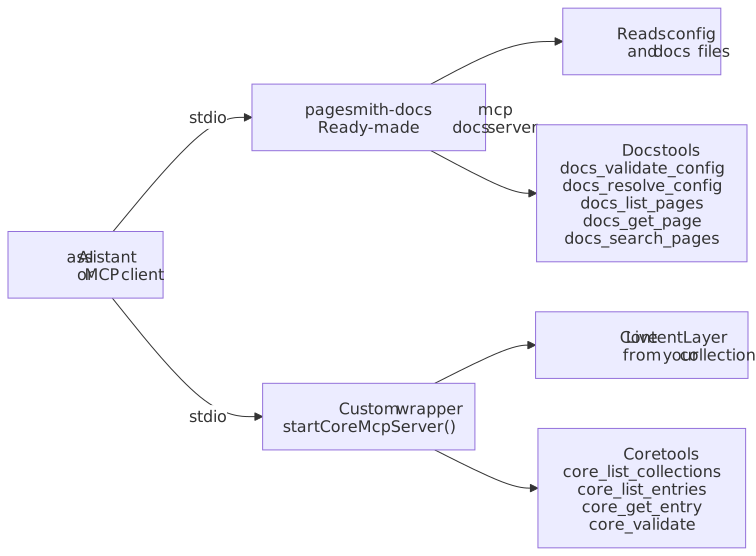
Pagesmith exposes two MCP surfaces that give AI assistants direct access to your content, configuration, and validation:
pagesmith-docs mcp --stdiofor docs projects using@pagesmith/docs@pagesmith/core/mcpfor projects that create aContentLayerdirectly in app code
This enables workflows like “validate my config, list all pages, then update the one about getting started.”
Use this diagram as the mental model: the docs server is a ready-made CLI entry point, while the core server only exists after you wrap a live ContentLayer from your app code.
Quick Setup
Claude Code
Add to .claude/settings.json (project-level) or ~/.claude/settings.json (user-level):
{ "mcpServers": { "pagesmith-docs": { "command": "npx", "args": ["pagesmith-docs", "mcp", "--stdio"] } }}After saving, restart Claude Code. If you only need docs tools, this is enough.
Cursor / Other MCP Clients
Any MCP-compatible client can connect using the stdio transport:
npx pagesmith-docs mcp --stdioPass --config <path> to specify a custom config file, or --root <dir> to set the project root.
Docs MCP Server (@pagesmith/docs)
The docs MCP server provides tools scoped to your documentation site.
docs_validate_config
Validate pagesmith.config.json5 and return any warnings or errors.
When to use: Before building, after editing config, or when debugging configuration issues.
{ "configPath": "pagesmith.config.json5" }Returns: Array of { type: "error" | "warning", message, field? } issues. Empty array means valid.
Example workflow:
“Validate my docs config and fix any issues” — The agent calls
docs_validate_config, reads the issues, then edits the config file to resolve them.
docs_resolve_config
Return the fully resolved configuration with all defaults applied, including auto-detected basePath, favicon, and edit link patterns.
When to use: To understand what effective configuration is being used, especially when smart defaults are in play.
{ "configPath": "pagesmith.config.json5" }Returns: The complete resolved config object with every field populated.
docs_list_pages
List all pages with their slug, title, section, and source file path.
When to use: Before editing content, to understand what pages exist and where they are.
{ "section": "guide" }The section parameter is optional. Omit it to list all pages across all sections.
Returns: Array of { slug, title, section, sourcePath, description? }.
Example workflow:
“List all guide pages and check which ones need updating after the API change” — The agent calls
docs_list_pageswithsection: "guide", then reads relevant pages to check accuracy.
docs_get_page
Get a single page by slug, including full metadata and raw markdown source.
When to use: To read a specific page’s content before editing or reviewing it.
{ "slug": "guide/getting-started" }Returns: { slug, title, description, section, sourcePath, markdown, frontmatter }.
docs_search_pages
Case-insensitive substring search across each page’s title, description, and raw markdown source. Optional section filter narrows the search.
When to use: To find pages related to a topic without knowing the exact slug.
{ "query": "validation", "section": "reference" }Returns: Up to 20 matching pages with snippets. Results are returned in discovery order — there is no relevance ranking.
Core MCP Server (@pagesmith/core)
The core MCP server provides tools for inspecting collections and content entries. It is useful for custom sites built on @pagesmith/core directly.
Unlike the docs server, the core server is programmatic because it needs a live ContentLayer instance. There is no standalone pagesmith-core mcp CLI.
One straightforward setup is a tiny wrapper script:
import collections from "../content.config.js";import { createContentLayer, defineConfig } from "@pagesmith/core";import { startCoreMcpServer } from "@pagesmith/core/mcp";const layer = createContentLayer( defineConfig({ collections, }),);await startCoreMcpServer({ layer, rootDir: process.cwd(),});Then register that wrapper with your MCP client:
{ "mcpServers": { "pagesmith-core": { "command": "node", "args": ["./scripts/pagesmith-core-mcp.mjs"] } }}core_list_collections
List all defined collections with their loader type, directory, and schema field names.
core_list_entries
List entries in a collection with pagination support.
{ "collection": "posts", "limit": 20, "offset": 0 }core_get_entry
Get a single entry with its validated data and rendered HTML (for markdown collections).
{ "collection": "posts", "slug": "hello-world" }core_validate
Run all validators (schema + content) on one or all collections and return issues.
{ "collection": "posts" }core_search_entries
Search entries by slug, title, description, or tags before pulling full rendered content.
{ "query": "search", "collection": "posts" }Available Resources
Each MCP server exposes versioned documentation as resources tied to the installed package version, so AI agents always get version-matched guidance.
Docs MCP server (pagesmith-docs mcp --stdio):
| Resource URI | Content |
|---|---|
pagesmith://docs/agents/usage |
@pagesmith/docs usage rules (skills/pagesmith-docs-setup/references/usage.md) |
pagesmith://docs/llms-full |
Full docs reference (llms-full.txt) |
pagesmith://docs/reference |
@pagesmith/docs REFERENCE.md |
pagesmith://core/reference |
@pagesmith/core REFERENCE.md resolved from the installed core package |
Core MCP server (your custom wrapper around @pagesmith/core/mcp):
| Resource URI | Content |
|---|---|
pagesmith://core/agents/usage |
@pagesmith/core usage rules (skills/pagesmith-core-setup/references/usage.md) |
pagesmith://core/llms-full |
Full core reference (llms-full.txt) |
pagesmith://core/reference |
@pagesmith/core REFERENCE.md |
The docs server intentionally also exposes the core REFERENCE.md so docs-only setups can read the underlying content-layer reference without registering a second server.
Practical Workflows
Validate, list, and update
docs_validate_config— ensure config is cleandocs_list_pages— see what existsdocs_search_pages— narrow to matching docs pages when the site is largedocs_get_page— read the page to update- Optionally read
pagesmith://docs/referenceorpagesmith://core/referencefor version-matched package docs - Edit the markdown file
docs_validate_config— verify nothing broke
Content audit
docs_list_pages— get all pagesdocs_search_pages— find pages by changed API names or concepts- For each page:
docs_get_page— read content - Compare against source code
- Update outdated pages
Debug a build issue
docs_validate_config— check for config errorsdocs_resolve_config— see effective config with defaultsdocs_list_pages— verify content discovery
When to Use MCP vs CLI vs Skills
| Task | MCP | CLI | Skill |
|---|---|---|---|
| Validate config | docs_validate_config |
||
| List/inspect pages | docs_list_pages |
||
| Search content | docs_search_pages |
||
| Build the site | pagesmith-docs build |
||
| Start dev server | pagesmith-docs dev |
||
| Initialize a project | pagesmith-docs init |
||
| Update docs after code change | /update-docs |
||
| Full docs refresh | /ps-update-all-docs |
MCP tools are best for reading and validating. Skills are best for writing and updating. The CLI is for building and serving.