Getting Started with @pagesmith/docs
@pagesmith/docs is a convention-based documentation site builder. It turns a directory of markdown files — with optional JSON5 config when you need overrides — into a complete docs site with navigation, sidebar, table of contents, Pagefind search, and a default theme — all without writing any JavaScript or layout code.
This guide covers everything you need to go from an empty project to a running docs site.
Follow the arrows left to right: install pulls in core, init lays down config and content, and your scripts drive dev, build, and search indexing.
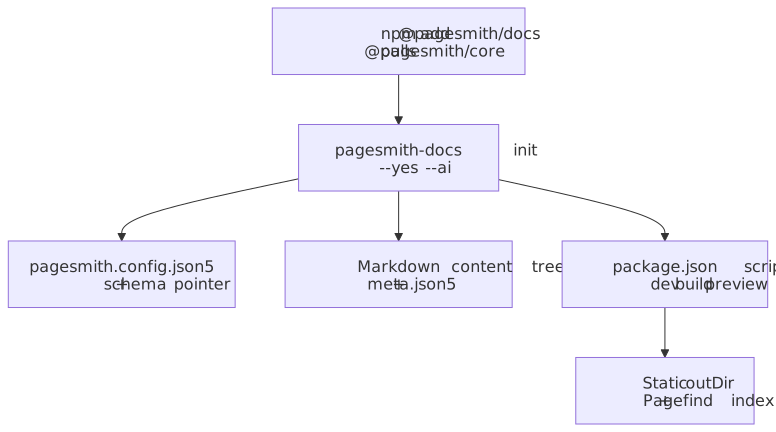
AI-First Setup
Paste this into your AI assistant when you want it to retrofit docs into an existing repo or create a fresh docs section with the right Pagesmith structure:
Set up docs using Pagesmith for this repository. Read
https://projects.sujeet.pro/pagesmith/prompts/setup-docs.mdfirst and follow it exactly. Usenpx pagesmith-docs init --yes --aifor bootstrap work and keeppagesmith.config.json5at the repo root.
If @pagesmith/docs is already installed and you want the version-matched local file instead of the hosted one:
Set up docs using Pagesmith for this repository. Read
node_modules/@pagesmith/docs/skills/pagesmith-docs-setup/references/setup-docs.mdfirst and follow it exactly.
If you want full copy-paste prompt bodies for both initial setup and upgrades, use Agent Prompts Cookbook. That page includes the repo-configuration prompt plus the upgrade prompt for an existing @pagesmith/docs integration.
Your agent will create:
pagesmith.config.json5— site configuration, including a$schemapointer to the installed package schema- a chosen docs folder (
docs/by default, or an existing docs-like folder after confirmation) - starter
guide/andreference/sections withmeta.json5andREADME.mdpages - root
package.jsonscripts:docs:dev,docs:build,docs:preview - AI context files and markdown guidelines
CLAUDE.md/AGENTS.mdpointers to the package guidance, setup prompt, and schema files- Claude skills for docs maintenance (
/update-docs,/ps-update-all-docs) when AI artifacts are installed
When the repo has a GitHub remote, the setup flow defaults to GitHub Pages:
basePathdefaults to/<repo-name>originstarts fromhttps://<owner>.github.ioand uses the resolved host if that URL redirects- if you want root-hosted docs instead, edit
pagesmith.config.json5manually after setup
The rest of this guide explains each piece in detail for manual setup or customization.
Install
npm add @pagesmith/docsThis is the only Pagesmith package you need for the docs workflow. You do not need to install @pagesmith/core or @pagesmith/site separately when using @pagesmith/docs.
After installation, the canonical docs CLI is available as npx pagesmith-docs. The package also exposes @pagesmith/docs/preset for pagesmith-site, but docs projects should prefer pagesmith-docs.
Quick Init
The fastest non-interactive setup flow is:
npx pagesmith-docs init --yes --aiFor an agent or scriptable workflow, pass explicit values:
npx pagesmith-docs init --yes --ai --content-dir docs --base-path /my-repo --origin https://my-user.github.ioIf https://my-user.github.io redirects to a custom host, use the redirected origin. If you want the docs site hosted at the root instead of /<repo-name>, edit pagesmith.config.json5 manually after init.
It is safe to rerun pagesmith-docs init later. The command updates pagesmith.config.json5 to add missing scaffold fields and refresh the $schema path instead of skipping the file outright.
Create a Configuration File
If your repository already follows the default conventions, pagesmith-docs dev, pagesmith-docs build, pagesmith-docs preview, and pagesmith-docs mcp --stdio work without a config file at all. In zero-config mode, Pagesmith uses <repo-root>/docs when it exists, falls back to <repo-root>/content, and writes the build to <repo-root>/gh-pages.
Add pagesmith.config.json5 at the project root when you want to override those defaults:
{ $schema: "./node_modules/@pagesmith/docs/schemas/pagesmith-config.schema.json", // Required: site identity name: "My Docs", title: "My Docs", description: "Documentation for my project", origin: "https://docs.example.com", // Optional: content and output paths contentDir: "./docs", outDir: "./gh-pages", // Optional: deployment under a subdirectory basePath: "/docs", // Optional: footer attribution maintainer: { name: "Sujeet Jaiswal", link: "https://sujeet.pro", }, // Optional: footer copyright copyright: { projectName: "Acme Docs", startYear: 2024, endYear: null, }, // Optional: footer navigation footerLinks: [ { header: "Docs", links: [ { label: "Guide", path: "/guide" }, { label: "API Reference", path: "/reference" }, ], }, { header: "Project", links: [{ label: "GitHub", path: "https://github.com/example/repo" }], }, ], // Optional: search (enabled by default) search: { enabled: true, },}Configuration Fields
| Field | Type | Default | Description |
|---|---|---|---|
name |
string |
directory name | Short site name shown in the header |
title |
string |
same as name |
Full site title used in page titles and meta tags |
description |
string |
"Documentation site powered by @pagesmith/docs" |
Meta description for the site |
origin |
string |
git-detected GitHub Pages host or "https://example.com" |
Production URL origin (used for canonical links, sitemap) |
language |
string |
"en" |
HTML lang attribute |
contentDir |
string |
"docs/" if exists, else "content/" |
Path to the content directory, relative to the config file |
outDir |
string |
"gh-pages" |
Build output directory, relative to the config file |
publicDir |
string |
"./public" |
Static assets directory copied verbatim to output |
basePath |
string |
git-detected repo name or "/" |
URL prefix for deployment under a subdirectory. Can also be set via the BASE_URL environment variable or the --base-path CLI flag. Priority: CLI flag > BASE_URL env > config value > git-detected repo name > default "/" |
maintainer |
object |
package.json author |
Maintainer credit used by the default footer sign-off |
footerLinks |
array |
top-level nav links | Links shown in the page footer as either a flat wrapped row or grouped columns with optional headers. When omitted, Pagesmith reuses the major top-level nav links |
footerText |
string |
— | Override only the Pagesmith sign-off segment in the footer’s bottom legal line |
copyright |
object |
— | Footer copyright config. startYear defaults to the repo’s first git commit year when available, and endYear: null keeps the rendered year dynamic |
search |
object |
{ enabled: true } |
Search configuration. Set { enabled: false } to disable |
theme |
object |
— | Theme overrides including lightColor, darkColor, and layouts |
analytics |
object |
— | Analytics config, currently supports googleAnalytics tracking ID |
editLink |
object | false |
auto-detected | ”Edit this page” link configuration, or false to disable the default git-remote detection |
lastUpdated |
boolean |
true |
Git-based last updated timestamps. Set false to opt out |
markdown |
object |
— | Markdown pipeline config passed to @pagesmith/core (custom remark/rehype plugins) |
Content Directory Structure
The content directory is the source of truth for your docs site. Top-level folders become navigation sections, and each markdown file inside one of those folders becomes a page for that section.
content/ README.md # Home page (the site landing page) guide/ README.md # "Guide" section landing page meta.json5 # Section configuration (optional) getting-started/ README.md # /guide/getting-started advanced-usage/ README.md # /guide/advanced-usage reference/ README.md # "Reference" section landing page meta.json5 # Section configuration (optional) api/ README.md # /reference/api docs-cli/ README.md # /reference/docs-cliKey conventions:
content/README.mdis always the home page, rendered at/.- Top-level folders (e.g.
guide/,reference/) define the docs sections. By default they appear in the header; useheaderLinksinmeta.json5to control which sections are shown. README.mdinside a section folder is the section landing page (e.g.guide/README.mdserves/guide).- Markdown files inside a section become pages even when nested. Nested folders keep their URL paths, but the section sidebar stays flat from the docs reader’s perspective.
meta.json5series group pages into sidebar buckets. Pages not referenced by any series stay visible under an automaticMiscellaneousgroup.- Files and folders starting with
.or_are ignored. - Files with
draft: truein frontmatter are excluded from the build.
README.md Files as Pages
The docs system uses README.md as the entry file for each page. This is intentional: it mirrors how GitHub renders folder READMEs, so your content reads well both on the rendered site and when browsing the repository directly.
A simple page looks like:
# Page TitleYour content here. The first `h1` heading is used as the page titleif no `title` frontmatter is provided.Frontmatter Options
Frontmatter is optional. When provided, it is written in YAML between --- fences at the top of the markdown file.
---title: Getting Starteddescription: Learn how to set up your first docs site.navLabel: Start HeresidebarLabel: Quick Startorder: 1draft: false---| Field | Type | Description |
|---|---|---|
title |
string |
Page title. Falls back to the first h1 heading, then to the slug converted to title case |
description |
string |
Page description used in meta tags and sidebar |
navLabel |
string |
Override the label shown in the top navigation bar for section landing pages |
sidebarLabel |
string |
Override the label shown in the sidebar for this page |
order |
number |
Numeric sort order within a section. Lower numbers appear first. Pages without order sort alphabetically after ordered pages |
draft |
boolean |
When true, the page is excluded from the build entirely |
socialImage |
string |
Path to a custom Open Graph image for this page |
Additional frontmatter fields are passed through to layout components, so you can define custom fields and access them in layout overrides.
Home Page Setup
The root content/README.md is rendered using the home layout. It supports special frontmatter fields to build a hero section and features grid without writing HTML.
---title: My Projecttagline: The Best Documentation Tooldescription: Build beautiful docs sites with zero configuration.actions: - text: Get Started link: /guide/getting-started theme: brand - text: View on GitHub link: https://github.com/example/repo theme: altfeatures: - title: Fast Setup details: Go from zero to a published docs site in under five minutes. - title: Built-in Search details: Full-text search powered by Pagefind, no configuration needed. - title: Markdown First details: Write in markdown, get a polished site with navigation and TOC.---## Additional ContentAny markdown below the frontmatter is rendered in a content section below the hero and features.Hero Fields
The home layout builds the hero from frontmatter. You can either use the top-level convenience fields (title, tagline, description, actions) or provide an explicit hero object:
---hero: name: My Project text: The documentation framework tagline: Convention over configuration actions: - text: Quick Start link: /guide theme: brand---Each action in the actions array has:
text— the button labellink— the URL (internal path or external URL)theme— visual style, either"brand"(primary color) or"alt"(secondary style)
Features Fields
The features array renders a card grid below the hero:
features: - title: Feature Name icon: "rocket symbol or emoji" details: A short description of the feature.Each feature has title (required), details (required), and an optional icon string.
Running the Dev Server
Start the development server with live reload:
npx pagesmith-docs devThe dev server defaults to port 3000. Use --port to change it:
npx pagesmith-docs dev --port 8080Use --open to automatically open the site in your default browser:
npx pagesmith-docs dev --openThe dev server watches the content directory and rebuilds pages on change. A WebSocket connection triggers automatic browser reload when content is updated.
Building for Production
Build a static site:
npx pagesmith-docs buildThe output goes to the configured outDir (default gh-pages/). The build:
- Processes all markdown files through the markdown pipeline
- Renders each page using the appropriate layout
- Bundles the theme CSS and runtime JavaScript
- Copies static assets from
publicDir - Runs Pagefind to generate the search index (if search is enabled)
Override the output directory or base path from the CLI:
npx pagesmith-docs build --out-dir ./public --base-path /my-docsPreviewing the Build
Preview the built site locally:
npx pagesmith-docs previewThis starts a static file server pointing at the output directory. Use --port to change the default port (4000):
npx pagesmith-docs preview --port 5000CLI Reference
pagesmith-docs dev [options] Start a docs dev serverpagesmith-docs build [options] Build a docs sitepagesmith-docs preview [options] Preview the built docs siteOptions: -p, --port <number> Server port (dev: 3000, preview: 4000) --open Open browser on server start --out-dir <path> Output directory (overrides config) --base-path <path> Base URL path prefix (overrides config) --log-level <level> Log level: silent|error|warn|info|verbose (default: warn) --config <path> Config file path (default: pagesmith.config.json5)Package Scripts
A typical package.json setup:
{ "scripts": { "docs:dev": "pagesmith-docs dev", "docs:build": "pagesmith-docs build", "docs:preview": "pagesmith-docs preview" }, "dependencies": { "@pagesmith/docs": "^0.8.0" }}Search
Pagefind full-text search is enabled by default. It indexes your content during pagesmith-docs build and provides a search modal triggered by Cmd+K / Ctrl+K.
To disable search:
{ search: { enabled: false },}Search works automatically with no additional configuration. The search index is regenerated on every build.
What to Read Next
- Meta and Navigation — control sidebar ordering, series grouping, and header links
- Layout Overrides — replace built-in layouts with custom components